Ad Block and rules
Rules decide what goes through your server, what connects directly, and what Warrenet™ blocks.
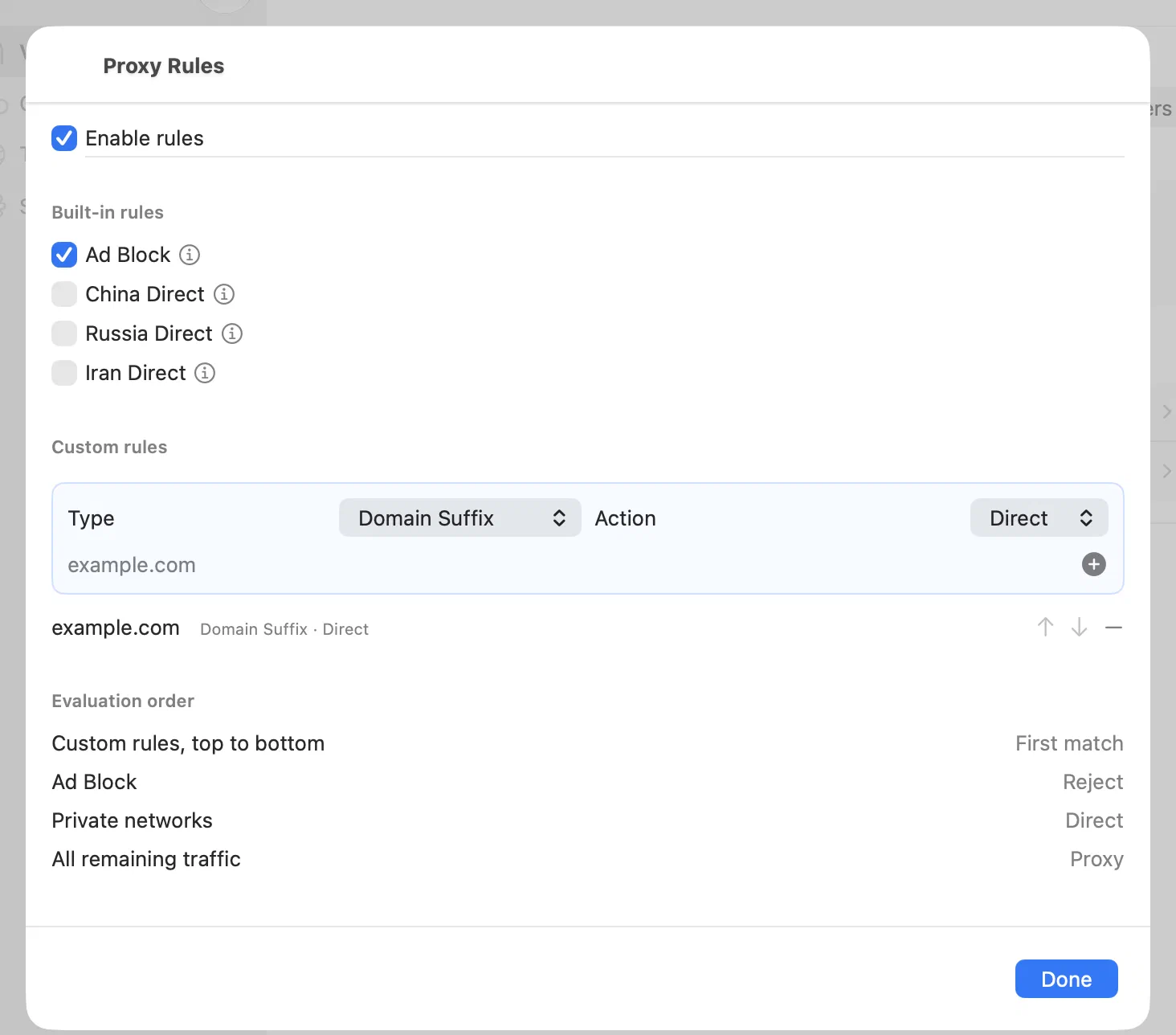
Open the rules
Rules are locked while the VPN is on, so disconnect first. Your changes apply the next time you connect.
- Open VPN and choose Disconnect if you’re connected.
- Below Servers, choose a mode: Proxy or Direct. Each mode has its own rules.
- Choose Rules.
Choose a mode
| Mode | What it does |
|---|---|
| Proxy | All traffic goes through your server, except what your rules and the private network rule send elsewhere. Most people want this mode. |
| Direct | Traffic connects directly, without your server, except what your rules send through it. |
You can add SOCKS5 and HTTP modes with the ⋯ button beside the modes. These run a proxy on your device that you point a single app at, instead of using the system VPN.
Ad Block
Turn on Ad Block to stop connections to known ad domains. The list ships with the app and updates when the app does. It won’t catch every ad.
If a website or app stops working with Ad Block on, add a custom rule for its domain. Custom rules are checked first.
Send a country’s websites directly
Some local services are slow or refuse connections from abroad. In any mode except Direct, turn on China Direct, Russia Direct, or Iran Direct to connect to websites and addresses in that country directly, without your server.
Traffic that connects directly doesn’t go through your VPN server, so those sites see your device’s own address.
Add a custom rule
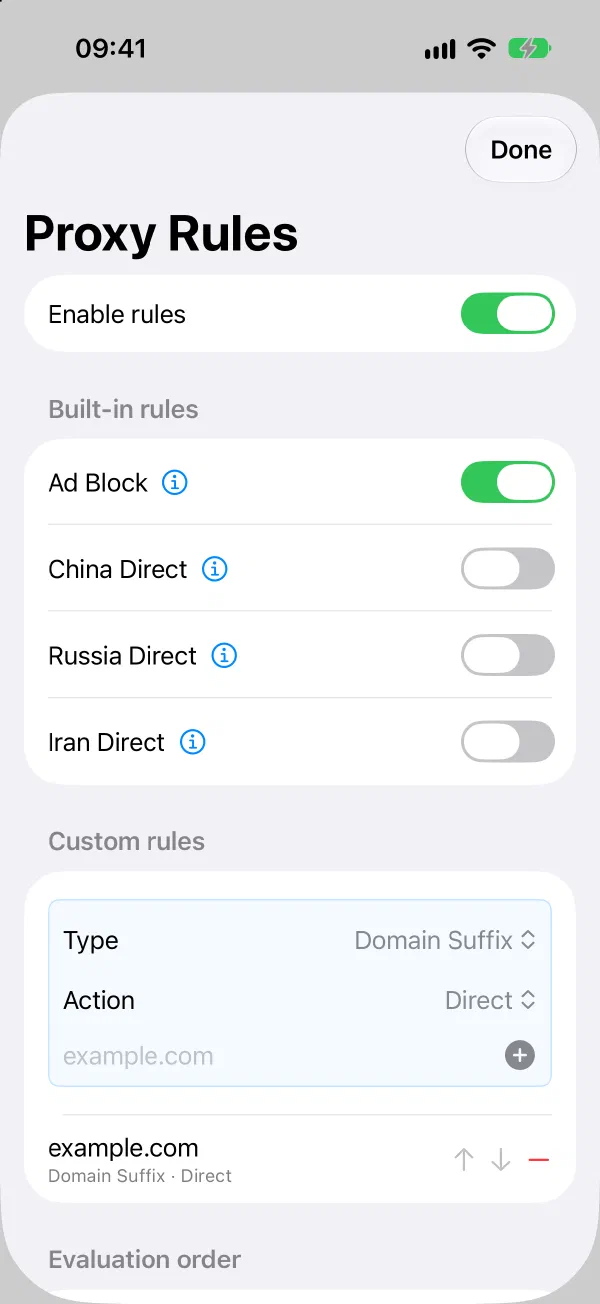
- Under Custom rules, choose a Type and an Action.
- Enter the value, such as
example.com. - Choose + to save the rule.
| Type | Matches | Example |
|---|---|---|
| Exact Domain | One domain name only | www.example.com |
| Domain Suffix | A domain and everything under it | example.com |
| Domain Wildcard | Names that match a pattern | *.example.com |
| IP / CIDR | An address or address range | 10.0.0.0/8 |
| GeoIP | Addresses in a country you pick from a list | Germany |
| GeoSite | A category of websites you pick from a list | A company or service name |
| Action | What it does |
|---|---|
| Proxy | Send the traffic through your server. Under Server, choose Auto or one of your selected servers. |
| Direct | Connect without your server. |
| Reject | Block the connection. |
New rules are added at the top of the list. Use the arrows to move a rule, and the minus button to delete it.
The order rules run in
The first rule that matches decides what happens. The Evaluation order section at the bottom of the sheet shows the order:
- your custom rules, from top to bottom
- Ad Block
- private networks, which connect directly
- the country rules you turned on
- everything else, which follows the mode
In Direct mode there are no private network or country rules, and everything else connects directly.
To turn every rule off for a mode without losing them, turn off Enable rules.
Rules on your other devices
With iCloud sync on, your custom rules appear on your other devices. A rule new to a device uses Auto there. Ad Block and the country rules stay separate on each device.
Need more help? Contact support.