Add another device
One Warrenet™ subscription and one server can cover your iPhone, iPad, and Mac.
You don’t need a second server. Install Warrenet on the new device, sign in to the same Apple Account, and bring your server over with iCloud sync. If you don’t want to use iCloud, you can move your server with an encrypted file instead.
Your subscription on the new device
Your subscription follows your Apple Account. If the new device doesn’t find it, open Settings, choose Subscription, then Restore Purchases.
Turn on iCloud sync
Do this on each device:
- Open Settings (a tab on iPhone and iPad, in the sidebar on Mac).
- Under iCloud Sync, turn on Sync with iCloud.
- The first time, read the note and choose Turn On Sync.
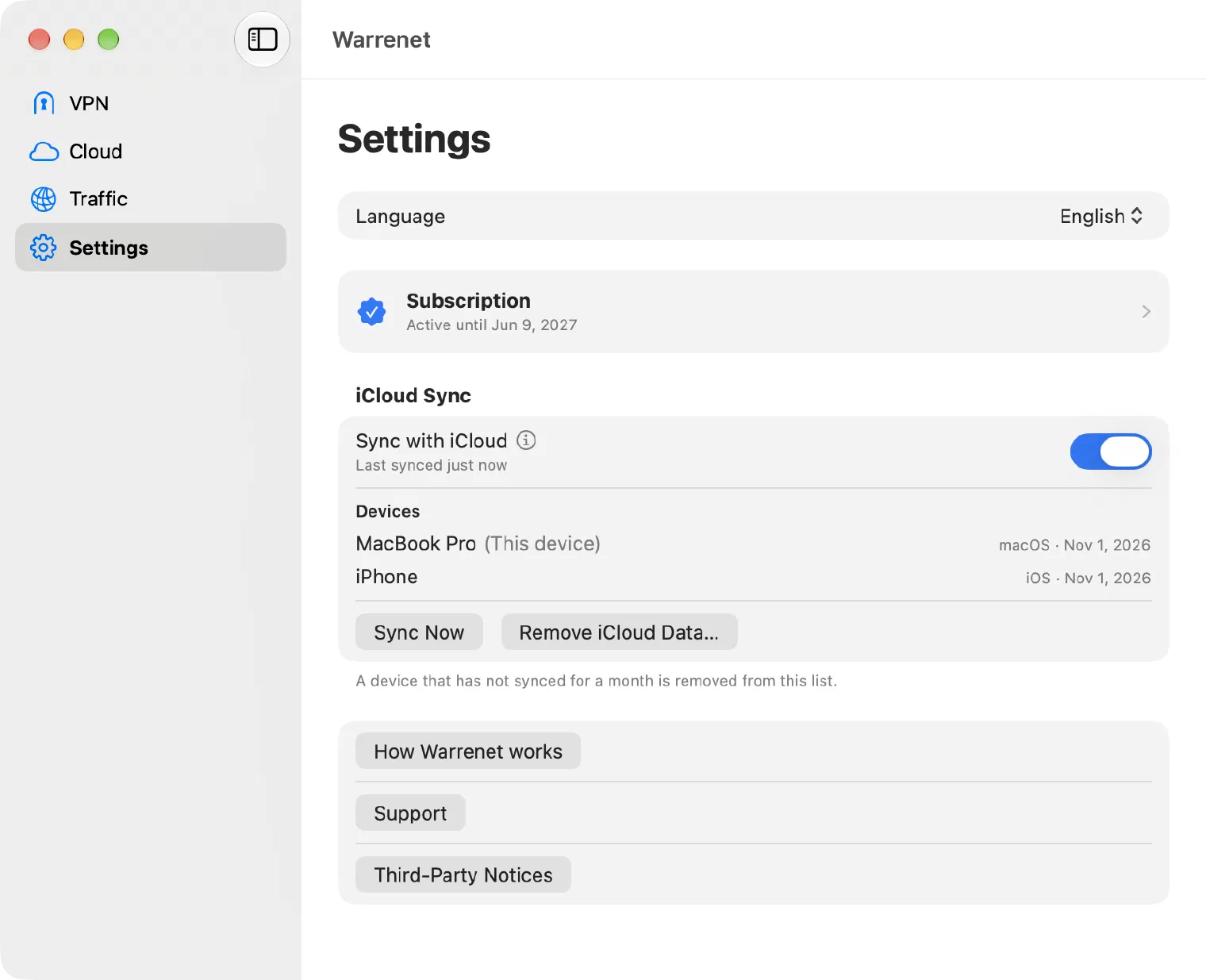
When sync is on, the section lists your devices. To fetch changes right away, choose Sync Now.
If the switch is off and can’t be changed, the line under it says why. Sign in to iCloud on the device. On iPhone and iPad, also set a device passcode and turn on iCloud Keychain.
Connect on the new device
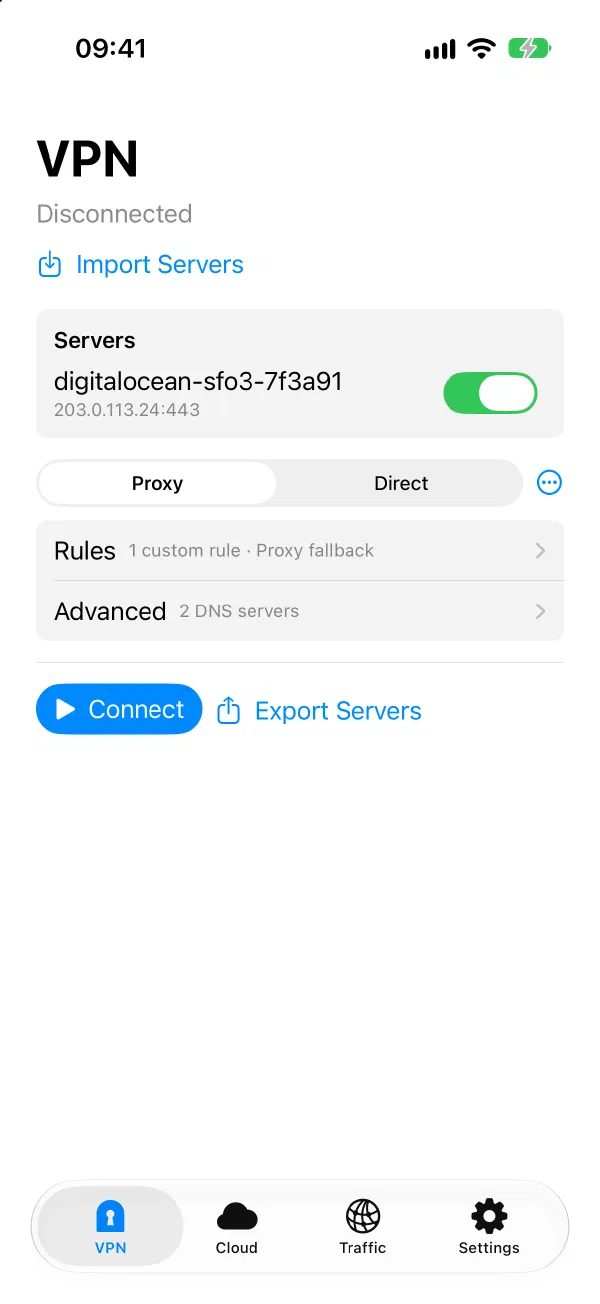
- Open VPN. Your server is listed under Servers.
- Check that the server is selected, and select it if it isn’t. A new install usually selects the servers it restores from iCloud, but a server added later arrives unselected.
- Choose Connect, and allow the VPN configuration when your device asks.
Manage the server on the new device
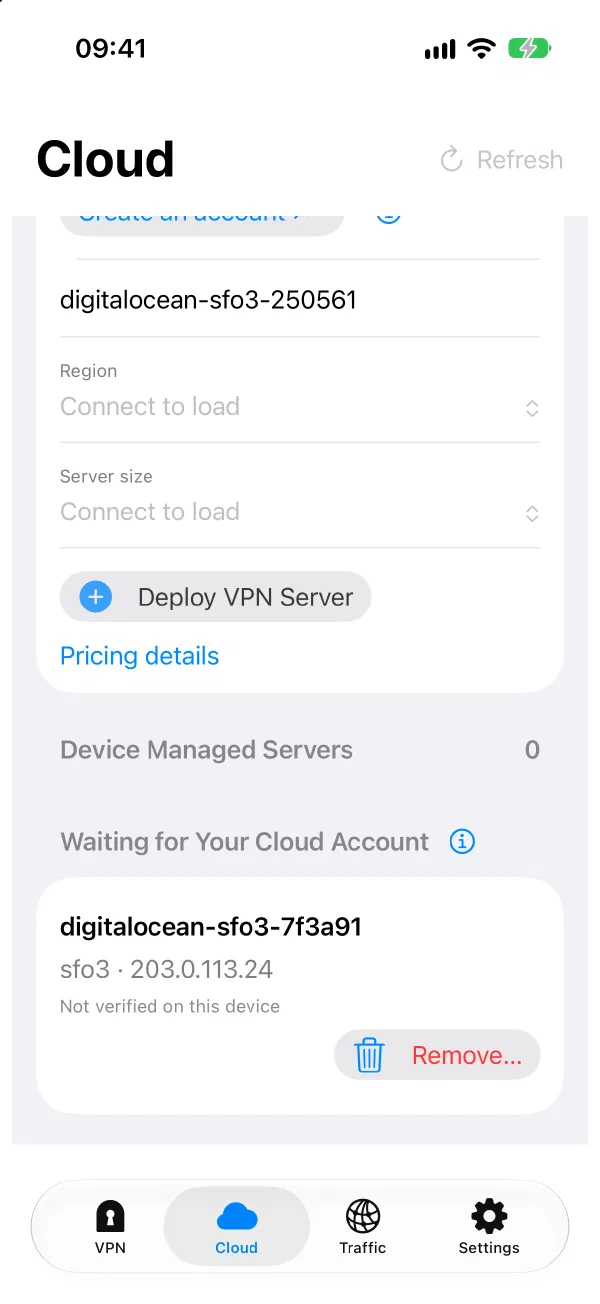
You can connect without signing in to your cloud provider. To stop or delete the server or see its cost on this device, sign in there too: open Cloud, choose the same provider, and choose Connect with its name, for example Connect DigitalOcean. If you see Reconnect instead, choose that. Until then, the server waits under Waiting for Your Cloud Account.
What iCloud sync includes
These sync across your devices:
- your servers and their keys
- your custom rules
These stay separate on each device:
- which servers are selected
- your sign-in to each cloud provider
- Ad Block and the country rules
- which server each custom rule uses
- your mode and DNS settings
Your server keys are end-to-end encrypted in your own iCloud account, so neither Apple nor Warrenet can read them.
Turn off sync
Turn off Sync with iCloud to stop syncing on this device. Your servers stay on the device.
To delete your synced data from iCloud as well, choose Remove iCloud Data…. This turns sync off. Your other devices stop receiving changes and keep what they already have. Your servers aren’t touched.
Without iCloud
You can also move your servers with an encrypted file. The same steps share a server with someone else, who needs their own copy of Warrenet and their own subscription.
On the device that has the server:
- Open VPN and choose Export Servers.
- Choose the servers to include.
- Choose Save Profile or Share Profile to save or send the encrypted file.
- Choose Copy Key to copy the One-Time Import Key. Send the key separately from the file.
On the other device:
- Open VPN and choose Import Servers.
- Choose Choose File… and pick the file.
- Paste the key into Import key and choose Import.
An export carries only the connection settings. Rules, modes, and cloud details stay on the first device. The imported server appears in VPN. To stop or delete it from Cloud on the other device, that device must sign in to the cloud account the server belongs to.
Everyone you share with uses your server’s data allowance. To take access away, delete the server and create a new one.
Need more help? Contact support.