Delete a server
Your cloud provider bills a server until it’s deleted. Stopping it isn’t enough.
Stop or delete?
Stop turns a server off, but it still exists, so your provider keeps billing it. Delete Server removes it for good, and its charges stop. Your provider bills for the time the server existed, and some providers bill at least a full hour.
Your provider bills for your server separately from your Warrenet™ subscription, so cancelling the subscription doesn’t delete your servers or stop their charges. You can delete a server in Warrenet whether or not you’re subscribed.
Before you delete
- It can’t be undone. The server, its address, and its keys are gone. Warrenet can create a new server, but it will have a new address.
- Every device using it loses access, including anyone you shared it with.
- Disconnect first. Warrenet won’t delete a server the VPN is using.
- Sign in on this device. You can delete a server only from a device that’s signed in to the cloud account it belongs to.
Delete a server in Warrenet
The steps are the same on Mac, iPhone, and iPad.
Open VPN and choose Disconnect if you’re connected.
Open Cloud and choose the server’s provider under Provider.
Find the server under Device Managed Servers.
Choose Manage Server, then Delete Server.
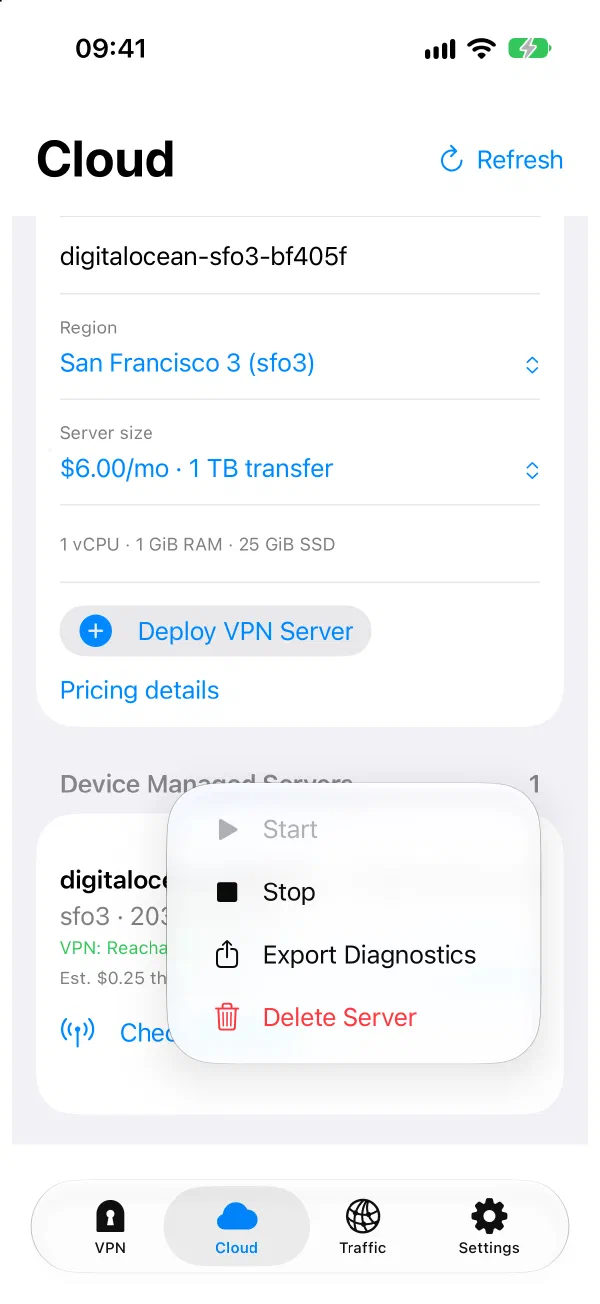
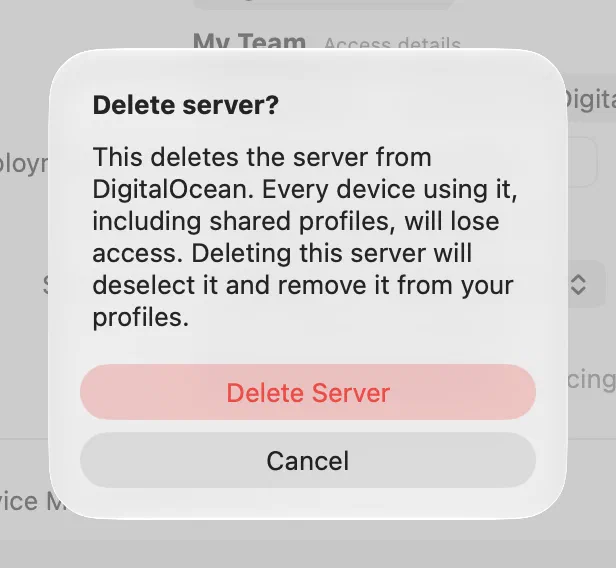
Read the confirmation, then choose Delete Server. If custom rules use this server, the title is Delete server and update rules? and the button is Delete and Use Auto.
The server disappears from Cloud and from VPN. With iCloud sync on, it also leaves your other devices.
To make sure nothing is left running, look at your provider’s dashboard or billing page. If you want more than one server gone, repeat these steps for each one.
Delete a server at your provider
If you can’t sign in from Warrenet, or you no longer have the device, delete the server in your provider’s dashboard. Warrenet’s default server names start with the provider’s name and the region, for example digitalocean-sfo3-7f3a91.
On a device signed in to that account, Warrenet usually notices the next time Cloud refreshes, and removes the server from your devices. Some cases are different:
- The VPN is using the server. Cloud shows Deleted — local cleanup will finish after disconnect. Disconnect to finish.
- A device signs in after the server is gone. The server can stay under Waiting for Your Cloud Account with Not in your … account. Choose Remove… to clear it.
- Your account has restricted permissions or more than one organization. Warrenet may not be able to confirm the deletion, so the server can stay listed in Cloud. Your provider’s dashboard shows what still exists.
Other server lists in Cloud
| You see the server under | What it means |
|---|---|
| Unrecognized Servers | Your account lists it, but this device has no settings for it. Manage Server still offers Delete Server. |
| Imported Servers in This Account | You imported it, and this account owns it. Delete Server deletes it at the provider. The imported copy stays in VPN until you remove it there. |
| Waiting for Your Cloud Account | Sign in to the provider on this device to manage the server here. Remove… changes nothing at your provider. It takes the server out of VPN on this device, deletes this device’s copy of its key, and removes it from your other devices, unless one is signed in to the account where the server still exists. If the row says Not verified on this device, the server may still exist, so charges can continue. If it says Not in your … account, the server is already gone. |
| Unfinished Deployments | A deployment never finished, and its account is no longer connected on this device, so Warrenet may not be able to tell whether a server was created. Check your provider’s dashboard first and delete any server you find there. Discard Deployment… removes only the record and its credentials from this device. |
If setup fails on a server, it’s still a billed server. Choose Delete and Redeploy… to replace it, or Delete Server to remove it.
Check what a server costs
In Cloud, each server shows its estimated charge for the month. Choose Cost details for its size, monthly price, and included transfer. This is an estimate of compute only: data transfer, taxes, and credits aren’t included. Your provider’s invoice is what counts.
Need more help? Contact support.